

A new tool from IslandSimPilot is designed to make that process a little less mysterious.
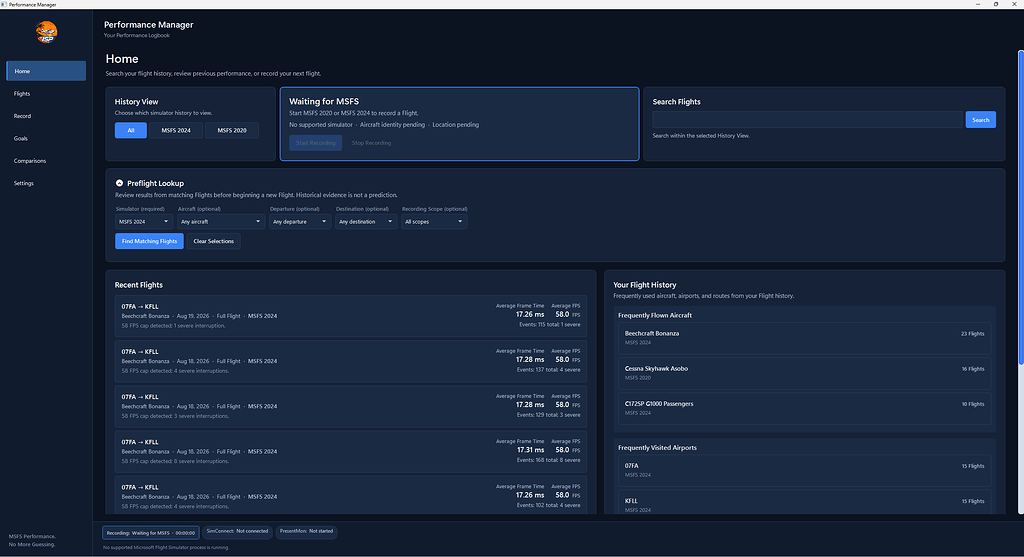
The IslandSimPilot Performance Manager records and analyzes performance data from actual Microsoft Flight Simulator flights, building a searchable history of FPS, frame time, CPU, GPU and VRAM behavior. Instead of relying on a single benchmark run or staring at an FPS counter for a few minutes, users can compare how their simulator performs across different aircraft, airports, routes, settings and flight conditions.
The tool supports both Microsoft Flight Simulator 2020 and Microsoft Flight Simulator 2024 and is available now for $24.99.
Performance Is More Than One FPS Number
One of the biggest problems with judging simulator performance is that average FPS only tells part of the story.
A system might average 60 frames per second while still delivering an unpleasant experience because of frame-time spikes, stutters or sudden drops during demanding phases of flight.
IslandSimPilot’s Performance Manager is designed around that problem.
The software automatically records performance while the user flies and tracks:
- FPS
- Frame time
- CPU behavior
- GPU behavior
- VRAM usage
- Performance events
- Simulator context
That information is then stored as part of a searchable flight history.
The idea is to stop treating each flight as an isolated performance test.
Instead, Performance Manager builds a long-term picture of how a specific simulator installation behaves.
Compare Aircraft, Airports and Settings
Performance in Microsoft Flight Simulator can vary dramatically depending on what and where you are flying.
A lightweight general aviation aircraft departing a regional airport is not going to place the same demands on a computer as a highly detailed airliner sitting at a major international hub.
Weather, traffic, scenery, aircraft complexity and graphics settings can all change the result.
Performance Manager allows users to compare individual flights or groups of flights to see how those variables affect performance.
That means users can test questions such as:
Did changing Terrain Level of Detail actually help?
Does one aircraft perform substantially worse than another?
Is a specific airport causing the problem?
Did a new NVIDIA or AMD driver improve performance?
Did the latest MSFS update make things better or worse?
Instead of relying on memory, the software lets users compare the data collected during those flights.
1% Lows May Matter More Than Average FPS
Performance Manager also records statistics that can reveal problems hidden by average frame rates.
The comparison system includes:
- FPS and frame time
- 1% lows
- Slower-frame percentiles
- Frame-to-frame consistency
- Performance events
- Severe performance events
- CPU, GPU and VRAM behavior
Those measurements can be particularly useful when tracking stutters.
For example, two simulator configurations might both average 50 FPS.
But one configuration may repeatedly drop into the 20s during approach while the other remains much more consistent.
Looking only at the average could make those two configurations appear nearly identical.
Looking at frame-time consistency and 1% lows tells a different story.
It Shows Where the Stutters Happened
One of the more interesting features is geographic performance mapping.
Performance Manager records performance events along the aircraft’s actual route and displays where they occurred.
Users can then see whether frame-time spikes or stutters cluster around a particular airport, city or portion of the flight.
That could help identify situations such as:
Repeated stutters approaching a specific airport.
Performance drops over a dense photogrammetry area.
Frame-time spikes during climb.
Problems that consistently appear on final approach.
Issues that only occur along one frequently flown route.
The software essentially attaches performance problems to geography.
So instead of remembering that the simulator “got rough somewhere around Miami,” users can return to the recorded flight and see exactly where the performance events were detected.
Test a Setting, Fly, Then Compare
The software is particularly well suited to controlled testing.
A user could fly the same route several times while changing one setting between flights.
For example:
Flight one with Terrain LOD at 200.
Flight two with Terrain LOD at 150.
Flight three with Terrain LOD at 100.
Performance Manager can then compare those sessions and show how the change affected FPS, frame time, CPU load, GPU behavior and overall consistency.
The same method can be used for simulator updates, graphics drivers or aircraft configurations.
Because the software can compare entire groups of flights instead of only one flight against another, users can look for patterns across repeated testing rather than basing a conclusion on a single unusually good or bad session.
Evidence-Based Graphics Recommendations
Performance Manager also includes evidence-based graphics settings recommendations.
Rather than applying generic recommendations designed for a broad range of hardware, the software uses performance information gathered from the user’s own simulator environment.
That distinction matters because no two flight simulator installations are exactly alike.
Different users may have different CPUs, GPUs, amounts of VRAM, resolutions, aircraft libraries, scenery packages and traffic settings.
A graphics setting that makes a substantial difference on one computer may accomplish almost nothing on another.
Using actual flight history potentially gives users a more informed way to decide what settings should be changed.
Useful After Simulator Updates
The system could also prove useful whenever Microsoft releases a major simulator update.
Performance discussions following an MSFS update frequently become a parade of conflicting reports.
One user says performance improved dramatically.
Another says it became worse.
A third reports no difference whatsoever.
Performance Manager gives users a way to compare flights recorded before and after an update using their own hardware and typical flying conditions.
The same applies to graphics-driver updates.
Instead of installing a driver, flying for ten minutes and deciding whether it “feels smoother,” users can collect several flights and compare the resulting data.
That does not eliminate every variable, but it provides considerably more evidence than the traditional simulator benchmarking method of squinting suspiciously at an FPS counter.
A Performance Logbook
IslandSimPilot describes the tool as essentially a performance logbook.
Every recorded flight becomes part of a searchable history that remains available for future comparisons.
Over time, that history could become especially useful.
A pilot who regularly flies the same aircraft and routes could identify changes that would otherwise be difficult to notice.
Perhaps performance at a favorite hub begins deteriorating after a scenery update.
Maybe a certain aircraft becomes smoother following a simulator patch.
Or perhaps a graphics setting everyone swears is essential turns out to make almost no measurable difference on that particular system.
The logbook approach is designed to make those patterns visible.
Built Specifically Around Real Flights
Performance Manager is not intended to replace traditional benchmarking software.
Its focus is narrower.
The software is built around what actually happens when someone uses Microsoft Flight Simulator normally.
That means performance is recorded during real flights involving real aircraft, scenery, airports, routes and weather rather than a canned benchmark sequence.
That approach comes with advantages.
A benchmark can provide excellent repeatability, but it may not represent the situations where a particular user actually experiences problems.
A simmer who primarily flies complex airliners into large airports may care far more about performance on approach to a detailed hub than performance during a generic test scene.
Performance Manager is designed to capture that real-world usage pattern.
Supports MSFS 2020 and MSFS 2024
IslandSimPilot confirms that Performance Manager supports both Microsoft Flight Simulator 2020 and Microsoft Flight Simulator 2024.
That also opens the door to comparisons between simulator versions.
Users running both platforms could potentially examine how similar flights behave between MSFS 2020 and MSFS 2024, although differences in scenery, aircraft and simulator architecture would still need to be considered when interpreting those results.
Available Now for $24.99
IslandSimPilot Performance Manager is available now for $24.99.
The developer describes the software as a tool for recording, analyzing, comparing and understanding actual Microsoft Flight Simulator performance rather than relying on a single benchmark or FPS reading.
That makes it an interesting addition to a part of flight simulation that can sometimes involve more folklore than measurement.
Anyone who has spent an evening moving sliders, restarting the simulator, changing drivers, deleting caches and then wondering whether anything actually improved will probably understand the appeal immediately.
Performance Manager’s answer is refreshingly simple:
Change something.
Fly it.
Then look at the evidence.